
Testing Minecraft features – Minecraft snapshot 25w08a and Bedrock preview
How do you test the latest Minecraft features? These snapshots are the very first iteration of Minecraft updates and are a way for Mojang to test out bug fixes, technical changes, and even new blocks, biomes, and mobs before officially rolling them out. Anyone with the Java edition of the creative game can try these features without any risk to your current world, while Minecraft Preview exists for those on Bedrock edition, so read on to find out how to be the first to try the next big Minecraft update.
During Minecraft Live, the next big Minecraft update or drop is revealed to the community. At past events, we’ve had the likes of the Caves and Cliffs update, The Wild Update, and the Trails and Tales update – each of them overhauling the base game with new Minecraft biomes, blocks, and mobs. Since these updates come with so much new content, they need to be tested out first, and that’s where Minecraft snapshots and Minecraft Preview come in. Use them to test out new experimental features before anyone else, and feedback to Mojang if you have any issues. It’s a win-win situation.
Minecraft snapshot 25w08a
The latest 2025 snapshot, 25w08a, compliments mob variants with new spawn egg textures that better reflect the mob that hatches from them. This is only a creative mode feature, but it certainly helps.
Before this change, Minecraft spawn eggs had the same texture but were different colors. Some of these colors reflected the mob within, but others really didn’t, and it made it quite hard to be able to tell the eggs apart. Following 25108a, spawn eggs might look creepy as hell, but they are far easier to tell apart.
Another big change is this snapshot is the addition of more leaf litter. When these were added in a pervious Spring Drop snapshot, they were lovely, but only came in one color. Now, there are different colors in different biomes, and this just makes them look a lot less repetitive.
Finally, wolves now have unique sound effects!!! Making the new ambient sounds of the Minecraft even more effective, wolf sounds aren’t actually related to their biome texture, but are instead allocated randomly from six new sound groups, meaning two taiga wolves, for example, could sound completely different.
We don’t yet know the release date of the next Minecraft update, or drop as they’re now called, but we do know many of the features to come thanks to this exciting snapshot.
Minecraft Preview
The current Minecraft Preview features all additions from the latest snapshot and more, since Bedrock Preview got some new test features on February 12, 2025.
This Bedrock Preview adds a change to sheep, but not quite in the same way as pigs, cows, and chickens. Since there are already color-variant sheep, Mojang is sticking with what we’ve got, and are just making it harder (or easier) to find brown, white, and black sheep as they now spawn in specific biomes. We were definitely hoping for some horned or fluffy sheep instead.
In perhaps bigger news, this latest test build also features additional maps that can be purchased from cartographer villagers and new trades with wandering traders.
How to install a Minecraft snapshot
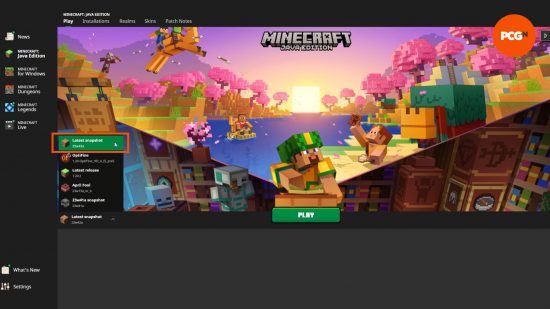
Play the latest Minecraft snapshot straight from the Minecraft Launcher. Click the installation dropdown to the left of the green ‘Play’ button and select ‘latest snapshot’ from the list. Hit play, and set up a new world as normal.
You can load into existing worlds, but you should back them up first in case it gets corrupted. If you load into an existing world, it’s worth remembering that some features won’t be available in loaded chunks, and you might need to explore the further reaches of your world.
How to turn on experimental features
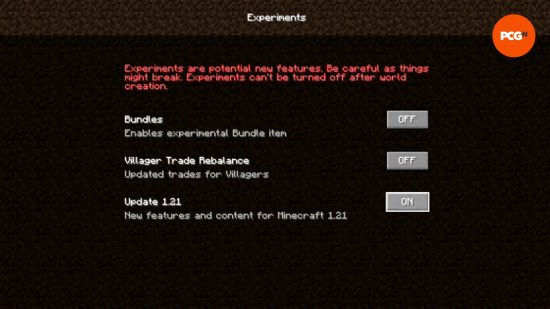
As standard, snapshots only include bug features and technical changes. To play with new experimental features, including future content changes, you must turn on experimental features. This should be done when you create the world, as they cannot be turned on or off later. To enable experimental features:
- Go to create a new world as normal
- On the main world creation page, click ‘Experimental Features’
- Turn on any toggles you wish to see in your world, such as 1.21 features, or even long-awaited bundles!
- Start your world
How to change Minecraft snapshot
You can also play old Minecraft snapshots, too. This requires a few extra steps and is the same as loading into old versions of Minecraft. To install and play an old Minecraft version or snapshot:
- Open the Minecraft Launcher
- Click the ‘Installations’ tab
- For snapshots, ensure that the ‘snapshots’ box is checked
- Click ‘New Installation’
- Scroll down the dropdown list for your desired Minecraft version
- Name your installation
- Click ‘Create’
- Select the ‘Play’ tab at the top of the Launcher
- Find your installation in the dropdown
- Hit ‘Play’!
Again, you should always back up any existing worlds you load into with this installation, just in case it crashes and you lose progress. There are probably not many reasons you would want to revisit an old snapshot unless it’s to test something that was changed or never made it to the game. If you are unsure which snapshot you’re looking for, there are full changelogs available at minecraft.net.
Now you know how to test the latest features with Minecraft snapshots, go and have fun with them! If you’d rather wait until the full release of these features and enjoy the experience as a whole, but are still looking for something new to do with your Minecraft world, why not try out some of our favorite Minecraft texture packs and Minecraft maps. Or perhaps even a completely new game like Minecraft – but do come back for the next update!